
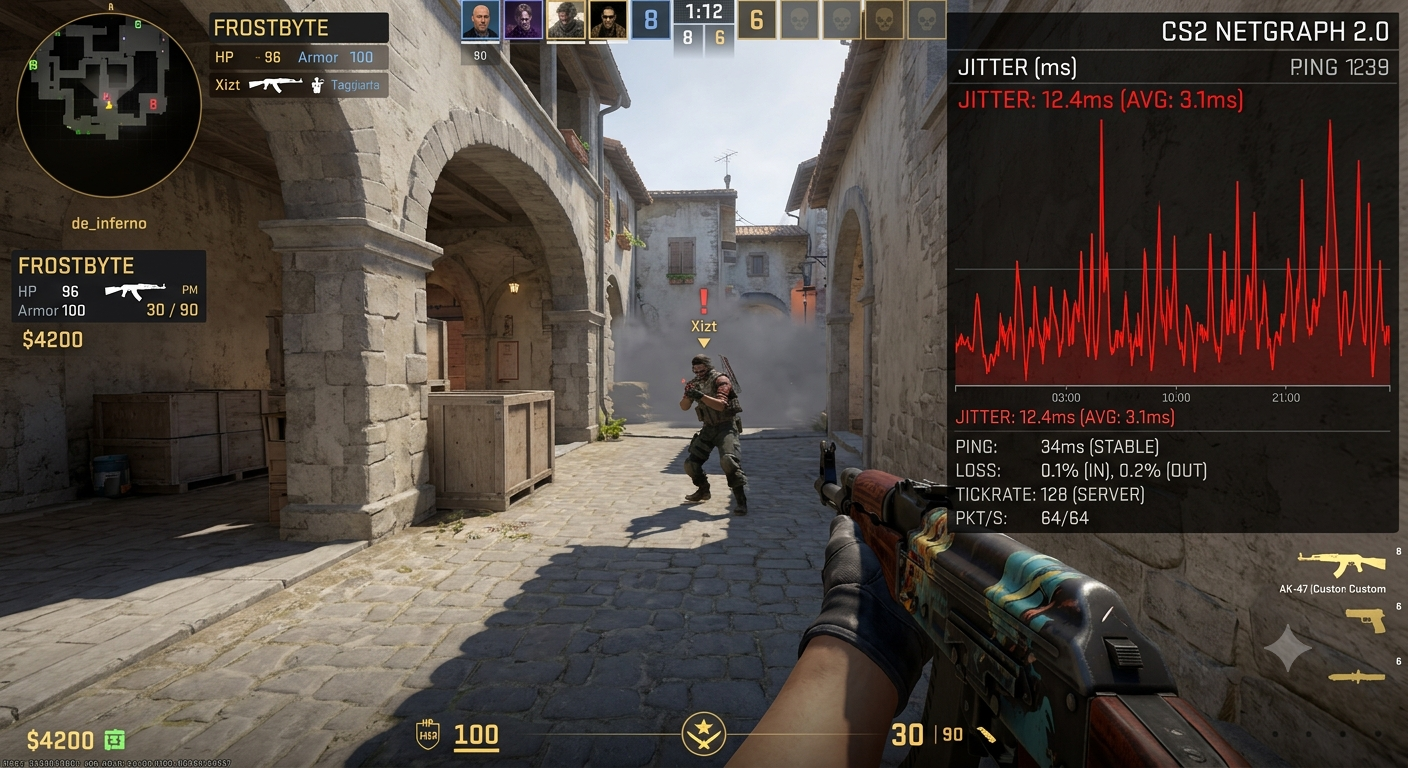
CS2 net jitter is the variation in how quickly network messages travel between your PC and the game server. Your ping may look acceptable—perhaps 25 or 40 milliseconds—yet the connection can still feel unstable because packets are not arriving at evenly spaced intervals.
That inconsistency matters in Counter-Strike 2. A sudden delay can make an opponent appear to accelerate around a corner, cause brief rubber-banding, or make a clean counter-strafe feel unreliable. Valve’s Source 2 telemetry separates ping, packet loss, jitter, and tick misses because each measurement describes a different network condition. de explains how to read the data, isolate the cause, and apply fixes in the right order. It also shows why random console commands rarely solve the underlying problem.
What Is CS2 Net Jitter?
A stable connection does not require every packet to have identical travel time, but the timing should remain reasonably consistent. If messages arrive after 20 ms, 22 ms, and 21 ms, the variation is small; if the sequence becomes 20 ms, 70 ms, 24 ms, and 110 ms, the connection is experiencing large delay spikes.
That changing delay is jitter. Average ping can hide these short peaks, which is why low latency does not always equal a smooth match.
Valve describes the Source 2 jitter graph as a real-time view of connection quality in which each bar represents a network message. The detailed display reports peak jitter separately from packet loss and tick misses. Net Jitter vs. Ping
Ping measures round-trip delay between your device and the server. Lower ping is usually preferable, but a stable 50 ms connection can feel better than a connection that repeatedly jumps between 15 ms and 90 ms.
The difference is straightforward:
- Ping: Total network delay
- Jitter: Variation in that delay
- Packet loss: Data that never arrives
- Tick miss: Network disruption that affects timely game-state delivery
A player can therefore have low ping and severe CS2 net jitter. The average looks good, but the delivery pattern is unstable.
CS2 Net Jitter vs. Packet Loss
Packet loss means one or more messages failed to reach their destination. Jitter means messages arrived with inconsistent timing, even when none were lost.
Valve’s examples show that high jitter can occur without packet loss. They also show that loss and jitter may be visible while the tick-miss rate stays at zero, meaning the engine absorbed the disruption before it affected gameplay. tinction matters. A red or purple telemetry bar indicates poor underlying network conditions, but it does not automatically prove that a missed shot was caused by the connection.
What CS2 Net Jitter Feels Like in a Match
Network instability rarely has one unmistakable symptom. It usually appears as several small inconsistencies during fast interactions.
Common warning signs include:
- Opponents seeming to skip during wide swings
- Brief rubber-banding while strafing
- Delayed weapon switching or utility throws
- Movement feeling heavy for a fraction of a second
- Damage feedback arriving later than expected
- Voice chat breaking up alongside gameplay
- Telemetry spikes when another device uploads data
These symptoms can also result from frame-time spikes, low FPS, server load, or input delay. Diagnose CS2 net jitter by checking network telemetry and performance telemetry separately.
Why It Can Look Like Bad Hit Registration
Counter-Strike 2 has a sub-tick architecture that allows it to record the timing of player movements, fire, and grenade throws rather than only whole ticks. Valve’s developers note that sub-tick updates are integral to the game engine’s ability to understand when a specific event has taken place. For instance, if the game’s processing power is insufficient for a reliable route, it results in undesirable client traffic. The client receives packets of information from the server in real-time; thus, late or sudden traffic can cause the system to buffer, rearrange, or recover lost data, resulting in undesirable hits or registration.
How to Check CS2 Net Jitter Correctly
Start with the game’s own telemetry instead of relying only on a browser speed test. A speed test does not reproduce the exact route or traffic pattern used by your current CS2 server.
Enable the network quality or telemetry display in the game settings. The basic display is suitable during normal play, while the detailed display separates ping, misses, loss, and peak jitter; Valve recommends expanding it when network conditions are poor. Patterns, Not One Spike
Valve’s graph uses bars to show the timing and delivery of individual network messages. Bright red lines indicate lost messages, while warning colors can represent misdelivery or excessive timing variation. iagnose the connection from one bar. Look for patterns:
- Frequent, small variation: Often manageable through automatic buffering
- Rare, large spikes: More likely to cause noticeable interruptions
- Loss plus jitter: Often linked to congestion, unstable Wi-Fi, or routing trouble
- Zero tick misses: The engine may be compensating successfully
- Rising tick misses: The disruption is reaching gameplay
Capture a short clip or screenshot when CS2 net jitter appears. Include the telemetry, server region, time of day, connection type, and other network activity.
Main Causes of CS2 Net Jitter
The instability may begin inside your PC, on your home network, at your internet provider, or farther along the route to the server. Finding the location is more useful than collecting dozens of “gaming optimization” tweaks.
1. Wi-Fi Interference
Wi-Fi uses shared radio airtime. Nearby routers, Bluetooth devices, walls, distance, channel congestion, power-saving behavior, and other clients can delay individual packets.
Your download speed may still look excellent because bandwidth and consistency are different. Competitive games use modest bandwidth but are highly sensitive to irregular delivery.
2. Upload Saturation and Bufferbloat
Cloud backups, video uploads, livestreams, file sync, security cameras, or phone photo backups can fill the upstream queue. Game packets then wait behind larger transfers, creating latency spikes without a complete disconnection.
This is a frequent cause of CS2 net jitter because players often monitor download traffic while overlooking the smaller and easier-to-saturate upload link.
3. Other Devices Using the Connection
Smart TVs, consoles, phones, tablets, and computers can generate short traffic bursts. Automatic game and operating-system updates are especially disruptive because they may start without warning.
Temporarily pause high-traffic activity across the entire network. Closing one browser on the gaming PC is not enough if another device is uploading or downloading heavily.
4. ISP Routing or Peak-Time Congestion
Packets pass through multiple routers before reaching a game server. Microsoft’s tracert documentation explains that traceroute discovers this path by examining responses from successive network hops. t Ethernet connection cannot repair congestion beyond your home. If CS2 net jitter affects one server region or appears mainly during evening peak hours, the ISP route may be involved.
5. Router, Cable, Driver, or Adapter Problems
Old firmware, overheating hardware, failing Ethernet cables, unstable network drivers, and aggressive power-saving features can introduce irregular delays. Rebooting may help temporarily, but recurring issues need a controlled test.
Replace questionable cables before buying expensive equipment. Also avoid third-party “driver updater” tools; use the network adapter or motherboard manufacturer’s package.
6. Background Network Software
VPN clients, third-party firewalls, traffic filters, cloud-sync apps, motherboard LAN utilities, and “gaming optimizer” software can alter or queue traffic. Some tools create more instability than they remove.
Disable them temporarily and compare the telemetry. Testing is more reliable than trusting marketing claims.
How to Fix CS2 Net Jitter Step by Step
Change one variable at a time. Applying ten tweaks together makes it impossible to identify the actual fix and can create new problems.
Step 1: Establish a Baseline
Join the same official server region at roughly the same time of day. Keep detailed telemetry visible for several minutes.
Record:
- Average ping
- Peak jitter
- Packet-loss percentage
- Tick-miss rate
- Whether spikes are continuous or bursty
- What other devices are doing
A baseline turns “the game feels bad” into evidence you can compare.
Step 2: Test With Ethernet
Connect the PC directly to the router using a known-good Ethernet cable. Disable Wi-Fi on the PC during the test.
If CS2 net jitter improves immediately, investigate wireless interference, weak signal, channel congestion, or adapter behavior. Ethernet is also the cleanest way to separate a home Wi-Fi issue from an ISP problem.
Step 3: Stop Uploads and Downloads
Pause cloud storage, torrents, livestreams, game updates, browser downloads, and phone backups. Check Task Manager and the router’s client list rather than looking only at visible applications.
Retest the same server. A major improvement points toward local congestion or bufferbloat.
Step 4: Configure QoS or Smart Queue Management
Router features may be labelled QoS, Adaptive QoS, Smart Queue, SQM, FQ-CoDel, or CAKE. Their purpose is to prevent one transfer from filling the connection queue and delaying time-sensitive packets.
Giving the gaming PC “highest priority” is not always enough. Effective queue management often requires setting managed upload and download rates slightly below the line’s real maximum, allowing the router to control congestion before a larger upstream queue does.
Step 5: Adjust CS2 Buffering Carefully
Valve says the engine can automatically add sufficient buffering when jitter occurs frequently like random background noise. Sporadic spikes separated by calm periods may require increasing the buffering setting to smooth over loss or jitter. the option by one step, then retest CS2 net jitter under the same conditions. Buffering can improve smoothness, but it adds a small delay, so use the lowest effective setting rather than selecting the maximum automatically.
Step 6: Improve Wi-Fi When Ethernet Is Impossible
Use 5 GHz or 6 GHz when signal strength is strong, place the router in an open location, and avoid several wireless repeaters between the PC and router. A nearby access point on a clean channel is usually more consistent than a distant router with higher advertised speed.
Update the wireless driver and temporarily disable aggressive adapter power saving. The objective is stable packet timing, not just a higher speed-test result.
Step 7: Restart and Update Network Hardware
Restart the modem and router, check for stable manufacturer firmware, and update the PC’s Ethernet or Wi-Fi driver. Observe whether the improvement lasts beyond one session.
If the issue returns after the router has been running for hours, overheating, firmware instability, or insufficient hardware capacity may be involved.
Step 8: Compare Regions and Times
Test another nearby official region. If one region is consistently clean while another produces CS2 net jitter, routing to the affected data centre becomes a stronger suspect than your PC.
Compare off-peak and peak-hour sessions as well. A repeatable evening pattern often suggests congestion outside the game.
Step 9: Gather Route Evidence
Windows tools such as tracert and pathping can help document a route when you have an appropriate destination. Microsoft states that tracert maps the routers in the path, while pathping can provide latency and loss information for links along that path. t results carefully. A router may ignore diagnostic packets while forwarding normal traffic, so an asterisk at one hop is not proof of a fault.
Step 10: Contact the Correct Provider
Contact your ISP when wired tests fail, several devices are affected, peak-time congestion is repeatable, or instability persists outside the home network. Supply dates, times, regions, screenshots, and wired test results.
Contact Steam Support when the issue appears only in CS2 despite a stable wired connection and reproducible tests across official servers. Specific evidence is far more useful than saying only that the game feels laggy.
Tweaks That Usually Do Not Fix CS2 Net Jitter
Most genuine CS2 net jitter problems involve packet timing outside the rendering pipeline. Graphics settings and old CS network commands cannot repair Wi-Fi interference, saturated queues, or poor ISP routing.
Be cautious with:
- Random
ratevalues copied from old guides - Registry “latency packs”
- Permanent firewall or antivirus disabling
- DNS changes promoted as a universal jitter fix
- VPNs marketed as guaranteed ping reducers
- Maximum buffering without comparison testing
- Network optimizer apps that replace stable drivers
A VPN can occasionally provide a better route, but it can also add distance and another point of failure. Use it only as a controlled comparison.
Changing DNS is unlikely to stabilize an established match connection because DNS primarily resolves names before the connection begins. It does not control the timing of packets already moving to the server.
Quick CS2 Net Jitter Diagnostic Matrix
Use these results to narrow the cause:
- Problem disappears on Ethernet: Focus on Wi-Fi.
- Problem appears during uploads: Manage bufferbloat and upstream saturation.
- Only one PC is affected: Check drivers, software, cable, and adapter.
- Every device is affected: Check router, modem, line quality, and ISP.
- Only one CS2 region is affected: Suspect regional routing or server conditions.
- Loss is zero but jitter spikes: Focus on queueing, Wi-Fi timing, and route variation.
- Network graph is clean but the game stutters: Investigate FPS and frame time.
This prevents rendering stutter from being misdiagnosed as CS2 net jitter. Both feel like lag, but they require different fixes.
How Much CS2 Net Jitter Is Acceptable?
There is no single cutoff that guarantees perfect play because the timing pattern matters as much as the peak. Frequent small variations may be handled smoothly, while one rare spike during a duel can be obvious.
Valve’s example describes a peak of roughly 8 ms as a small amount of jitter and explains that automatic buffering can absorb regularly occurring random delays. The more useful indicators are rising tick misses and a visible gameplay interruption that occurs at the same moment. a stable graph, zero loss, and zero or near-zero tick misses. Do not chase a perfectly motionless number when gameplay is already smooth.
Frequently Asked Questions
Is CS2 net jitter the same as packet loss?
No. Jitter is inconsistent packet timing, while packet loss means a message did not arrive. They may occur together, but Valve’s telemetry examples show high jitter without packet loss. is my ping low but CS2 net jitter is high?
Ping may represent an average or recent round-trip value. Brief spikes caused by Wi-Fi interference, queueing, uploads, or route congestion can be hidden inside an otherwise low number.
Can the buffering setting fix CS2 net jitter?
It can smooth some unstable delivery by holding messages briefly so they can be processed more evenly. Valve notes that automatic buffering handles frequent random variation, while sporadic spikes may benefit from increased buffering; the trade-off is a small addition to delay. higher FPS reduce CS2 net jitter?
No. Higher and more stable FPS can improve visual smoothness and input response, but it does not repair inconsistent internet packet timing. Compare frame-time and network telemetry before deciding which system needs attention.
Will changing DNS or using a VPN fix CS2 net jitter?
Changing DNS is unlikely to fix an active match connection. A VPN may help only when it creates a better route to the server, but it may also increase latency or instability, so compare controlled tests instead of assuming it is an upgrade.
Conclusion: Fix the Cause, Not Just the Number
The best way to resolve CS2 net jitter is to diagnose it in layers. Enable detailed telemetry, test Ethernet, stop competing traffic, control bufferbloat, adjust buffering conservatively, and compare server regions before changing advanced system settings.
Focus on repeatable evidence: loss, peak jitter, tick misses, time of day, and whether the issue survives a wired test. Once you identify where the instability begins, the next action becomes clear—repair Wi-Fi, manage queues, replace faulty hardware, or provide your ISP with a documented routing problem.