
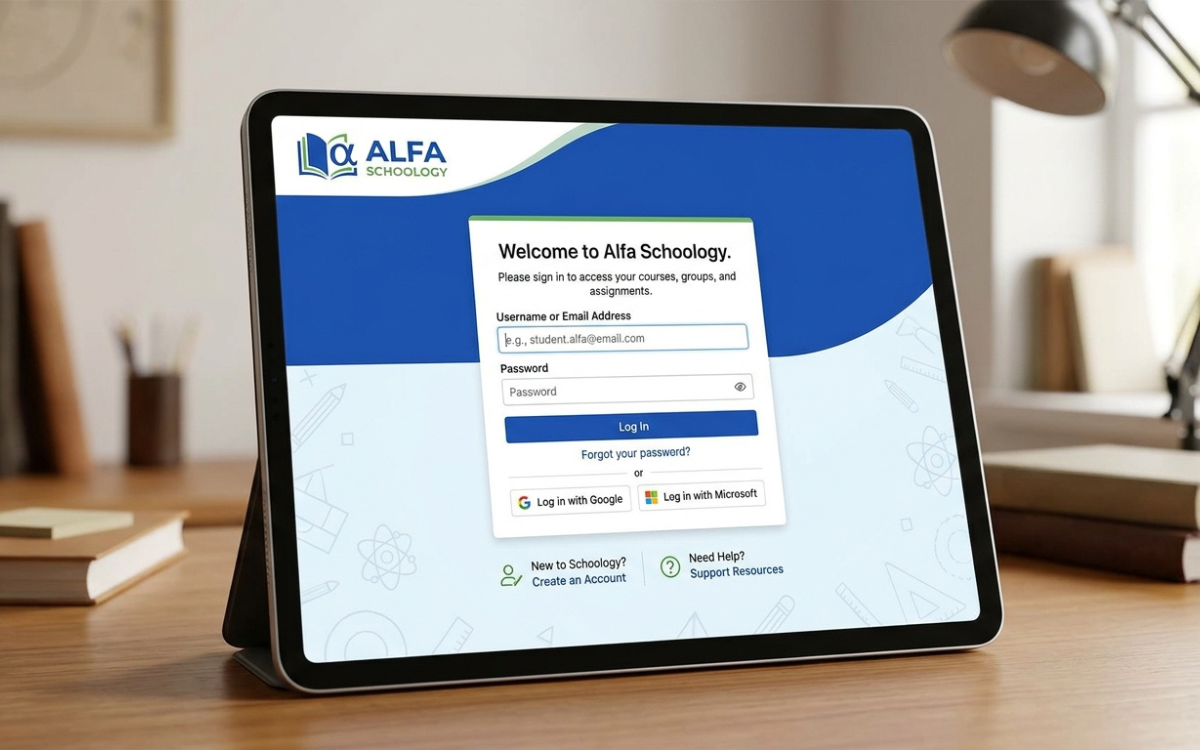
Alfa.schoology is best understood as the Schoology Learning environment associated with Alfa Fundación in Monterrey, Mexico, not as a separate learning-management product called “Alfa Schoology.” That distinction is directly supported by the official sign-in page, which is branded “Alfa Fundacion Monterrey, MX,” and by Alfa Fundación’s description of its education initiative for high-potential students from public-school communities in metropolitan Monterrey.
Several search results describe the term in broad product-like language, but the safer and more accurate interpretation is institution-specific access to PowerSchool Schoology Learning, a K-12 LMS for courses, assignments, grades, communication, and family visibility. That reading matches the official Alfa-branded login page and PowerSchool’s current Schoology product documentation.
If your real goal is to log in, find an assignment, check a grade, reset a password, or understand what the portal can do, this guide focuses on those tasks. It also separates verified facts from features that depend on Alfa Fundación’s local configuration.
What Is Alfa.schoology, Exactly?
Alfa.schoology is a search term people use for Alfa Fundación’s Schoology environment. The underlying platform is Schoology Learning, now part of PowerSchool’s learning-management offering, while the institution using that environment is Alfa Fundación.
The official login page provides the strongest direct evidence. It identifies the organization as Alfa Fundacion Monterrey, MX and offers sign-in fields for an email address or username and password, along with a password-recovery option and QR-code sign-in.
So what is it not? It is not publicly documented as a separate software company, a special “Alfa” edition of Schoology, or a new LMS product. That correction is important because it prevents users from trusting unofficial sites that invent features, pricing, enrollment rules, or account procedures.
Why the “Alfa.schoology” Name Creates Confusion
Institution-specific Schoology portals are often remembered by a school or organization name rather than by the formal product name. That naturally produces searches such as Schoology Alfa, Alfa Fundación Schoology, Schoology Alfa Fundación login, and Alfa.schoology login.
The dot in this search phrase can make it look like a domain name or product version. In practice, the verified portal uses the Schoology domain and Alfa Fundación branding; users should prioritize the official Schoology login environment rather than similarly named third-party pages.
Who Is Alfa Fundación?
Understanding the institution makes the portal much easier to understand. Alfa Fundación says its mission is to promote social mobility by identifying students with high intellectual potential in public-school communities around metropolitan Monterrey and providing rigorous education and long-term academic support.
The foundation currently describes three extracurricular academic centers in Monterrey, San Nicolás, and Escobedo, plus its own high school. Its program is designed to accompany students across multiple educational stages, with an emphasis on academic challenge, responsibility, collaboration, university preparation, and professional development.
Its 2025–2026 school profile adds useful context: Preparatoria Alfa Fundación is a tuition-free three-year high school, and the wider program includes highly selective after-school centers serving students from under-resourced public schools in Monterrey. The profile also shows how strongly the program is oriented toward university preparation and rigorous academics.
That context explains why an LMS matters here. A structured digital environment can centralize coursework, deadlines, feedback, and academic communication across a demanding program, although Alfa Fundación does not publicly document every Schoology workflow it uses.
Alfa.schoology Login: How to Reach the Correct Portal
The safest way to access the portal is through the official Alfa Fundación Schoology sign-in page at the institution-specific Schoology domain, shown as alfafundacion.schoology.com. The page is currently branded for Alfa Fundación in Monterrey.
The login process is straightforward. Keep the verification step first, because the correct portal matters as much as the credentials:
- Open the verified Schoology portal. Check that the domain belongs to
schoology.comand that the page identifies Alfa Fundación. - Enter your email or username. The official form accepts either format, depending on how the institution provisioned your account.
- Enter your password. Use the credentials issued or approved by your organization.
- Use “Forgot Password” when appropriate. Schoology provides a recovery workflow, although users who sign in only with a username may need help from their school administrator.
- Use QR sign-in only from the verified page. The current Alfa Fundación login page also displays a QR-code scanning option.
Do not enter credentials into a blog post, directory, “login helper,” or cloned page simply because it ranks for the keyword. For this portal, the domain and institution name matter more than the position of a search result.
What If Alfa.schoology Login Is Not Working?
Start with the simplest checks. Re-type the username or email manually, verify Caps Lock, and confirm that your browser did not autofill an old password.
If the credentials still fail, use Schoology’s Forgot Password option when your account supports email-based recovery. PowerSchool’s current documentation notes that users who do not see a password-change option, or who cannot recover a username-only account through email, may need to contact their school’s system administrator or support contact.
Browser problems can look like account problems. PowerSchool recommends current supported browser and mobile-app versions for optimal Schoology performance, so an outdated app, stale browser session, or unsupported software should be ruled out before assuming the account itself is broken.
A useful troubleshooting order is easy to remember. Work from identity and credentials toward device and institutional support:
- verify the official portal;
- retry credentials manually;
- use password recovery;
- update the browser or app;
- try another supported browser or device;
- contact Alfa Fundación’s designated academic or technical support channel if the issue persists.
What Can You Do Inside Alfa.schoology?
Once signed in, the Alfa Fundación portal should inherit the core structure of Schoology Learning, but the exact menu items and enabled tools can vary by institution, role, course, and administrator settings. PowerSchool describes Schoology as a K-12 learning hub that can bring curriculum, assignments, assessments, communication, and family engagement into one platform.
For students, the home page can surface courses, activity, assignments, and notifications. PowerSchool’s student documentation says the Schoology home page may be configured around Recent Activity, the Course Dashboard, or Assignments, depending on organization settings.
Courses, Materials, and Assignments
Schoology courses can contain folders, pages, files, discussions, assessments, and assignments. A graded assignment may allow a student to upload a file, create a response in the editor, or submit content from connected resources, depending on how the teacher built the activity.
For students using the portal, the practical habit is simple: open each course’s Materials area instead of relying only on recent notifications. Notifications are useful, but the course itself is the more reliable place to confirm instructions, attachments, due dates, rubrics, and submission requirements.
When submitting work, wait for the platform to confirm the submission rather than assuming an uploaded file is finished. Schoology also supports re-submission for some assignments, but whether a second attempt is appropriate depends on the assignment settings and teacher instructions.
Grades and Teacher Feedback
Schoology includes course grading workflows for assignments, discussions, tests, quizzes, assessments, and grade columns. Teachers can enter or adjust grades and, depending on the activity, review submissions and provide feedback.
Students should treat the grade view as more than a score screen. Check comments, rubrics, returned files, and individual assignment details because those items often explain why a grade was earned and what to improve next.
Parents should also remember that the Schoology gradebook may not always be the institution’s final official record. PowerSchool explicitly advises families to check which gradebook or student information system their school treats as authoritative.
Notifications: The Most Underused Alfa.schoology Feature
A well-configured notification setup can turn the portal from something you remember to check into a system that actively helps you manage deadlines. Schoology allows users to customize certain email notifications for academic, group, school, and social activity.
Students can adjust notification preferences from account settings, while the bell icon shows a chronological stream of platform activity that is separate from customizable email settings. PowerSchool also notes that text-message notifications are not supported outside the United States and Canada, which is particularly relevant for users in Mexico.
A smart setup is to enable email alerts for high-value events—new assignments, due-date changes, teacher messages, and graded work—without turning on every possible alert. Too many notifications create noise; too few make the LMS easy to ignore.
Alfa.schoology for Parents and Families
Schoology supports parent and family visibility, but Alfa Fundación users should not assume that every parent feature is automatically enabled by Alfa Fundación. Institution settings determine what families can access and which communication methods are preferred.
Where parent access is enabled, PowerSchool documents the ability to view a child’s activity, course content, upcoming or overdue work, and grades. Parent view does not allow a family member to submit work on the student’s behalf.
Parents may also have access to email digests and overdue notifications, depending on configuration. These can be more useful than daily manual checking because they summarize activity at a regular cadence and make missing work easier to spot.
The best parent workflow is supportive rather than supervisory: use the portal to identify patterns, then discuss priorities with the student. A list of five overdue tasks is more useful as a planning conversation than as a reason to refresh the gradebook repeatedly.
Using Alfa.schoology on Mobile
Schoology offers mobile apps for iOS and Android, and Alfa.schoology users can benefit from them for quick checks, messages, notifications, and some assignment workflows. PowerSchool recommends using the latest app version because feature availability and compatibility change over time.
Mobile is convenient, but it is not identical to desktop. PowerSchool’s documentation explicitly states that certain features or settings may require a computer or mobile browser even when the app provides access to the core learning experience.
Android users also have an offline mode that can download certain course materials for later viewing without an internet connection. However, offline materials are review-only: students cannot submit assignments or post discussions until they reconnect.
That makes offline mode useful for reading and preparation, not for last-minute submission. If a deadline matters, reconnect early enough to upload the work and verify that Schoology recorded it.
Security and Privacy Tips for Alfa.schoology Users
Because Alfa.schoology is an academic account, treat its credentials with the same care as an email or banking login. The most important protection is basic: use the official Schoology domain, keep the password private, and never share credentials through messaging apps or unofficial support pages.
PowerSchool’s account documentation recommends keeping passwords private and currently requires Schoology passwords to meet a minimum length of 12 characters when users can manage them directly. Institution-managed authentication or single sign-on can behave differently, so follow Alfa Fundación’s account rules when they conflict with generic guidance.
If you receive an unexpected “login” link by email or chat, do not use urgency as proof that it is legitimate. Open the known Schoology portal yourself and check notifications from inside the platform.
What Competitor Guides Often Get Wrong
The biggest SEO opportunity around Alfa.schoology is accuracy. Third-party pages often recognize an Alfa Fundación connection, but some also describe “Schoology Alfa” with broad feature claims without showing whether Alfa Fundación has enabled each feature locally.
A better standard is to separate three layers. This keeps verified Alfa-specific facts distinct from generic Schoology capabilities:
- Verified Alfa-specific facts: the official Schoology portal exists, identifies Alfa Fundación in Monterrey, and supports username/email plus password sign-in, password recovery, and QR scanning.
- Verified Schoology capabilities: the underlying LMS supports course materials, assignments, grade workflows, notifications, family views, mobile access, and integrations documented by PowerSchool.
- Configuration-dependent features: parent access, messaging rules, specific integrations, AI tools, grading policies, SSO, and course structure may differ by institution or course.
That distinction is not a disclaimer for its own sake. It is what makes a guide genuinely useful. Users need to know what they can trust, what they should check inside their own account, and when to contact the institution.
Best Practices for Students Using Alfa.schoology
The highest-value habits are boring—and effective. Alfa.schoology works best when students use it as an academic planning system rather than only as a place to upload homework five minutes before a deadline.
Build a routine around these actions. The goal is to reduce missed work, unclear instructions, and last-minute submission risk:
- Check the dashboard once at the start of the study day.
- Open each active course’s Materials area for complete instructions.
- Use the calendar or assignment view to plan several days ahead.
- Submit early enough to verify the upload.
- Read rubric comments and teacher feedback after grading.
- Tune notifications so important changes reach you without flooding your inbox.
- Use mobile for quick access, desktop for complex work when possible.
- Keep downloaded copies of major work until the grade is finalized.
The key is redundancy. A notification can be missed; a calendar entry can be overlooked; a mobile upload can fail. Students who check the course instructions, plan deadlines, and verify submissions are far less exposed to those single points of failure.
FAQs About Alfa.schoology
Is Alfa.schoology the same as Schoology?
Alfa.schoology is not a separate LMS. It refers to the Schoology environment associated with Alfa Fundación. The official login is hosted within Schoology and branded “Alfa Fundacion Monterrey, MX,” while the underlying platform is PowerSchool Schoology Learning.
What is the official Alfa.schoology login?
The verified Alfa Fundación portal uses the institution-specific Schoology domain alfafundacion.schoology.com. Before entering credentials, confirm that you are on the Schoology domain and that the sign-in page identifies Alfa Fundación in Monterrey.
What should I do if I forgot my Alfa.schoology password?
Use the Forgot Password option on the verified login page first. If your account is username-only, email recovery is unavailable, or the account is institution-managed, PowerSchool recommends contacting the school or system administrator for help.
Can parents see grades and assignments in Alfa.schoology?
Schoology supports parent views for student activity, course materials, upcoming or overdue work, and grades, but Alfa Fundación controls which parent features are enabled. Families should follow the institution’s own account and communication instructions rather than assuming every generic Schoology feature is available.
Does Alfa.schoology work on a phone?
Yes, the underlying Schoology platform has iOS and Android apps, and many student tasks can be completed on mobile. Some settings and workflows are still better handled through a browser or computer, and PowerSchool recommends keeping the app updated.
Final Takeaway: Use Alfa.schoology as a Verified Academic Hub
Alfa.schoology is most useful when you stop treating it as a mysterious product and start treating it as what the evidence supports: Alfa Fundación’s institution-specific gateway into Schoology Learning. The official portal confirms the Alfa Fundación connection; PowerSchool’s documentation explains the broader LMS features; Alfa Fundación’s own site provides the educational context behind the organization.
Your next step is practical. Bookmark the verified portal, configure only the notifications you need, review course materials directly, verify every important submission, and contact Alfa Fundación’s official support channel when an account or institution-specific setting cannot be resolved through Schoology’s standard tools.
That approach is safer, faster, and more reliable than treating every third-party “Alfa Schoology” guide as institution-specific documentation. Search visibility is not proof that a page knows which optional settings Alfa Fundación has actually enabled.